Why "who said what" was the hard part
Speaker labeling has normally been a second job. One model turns audio into words, another model clusters voices into speakers, and the app aligns the two results afterward. That works, and On Device AI has shipped speaker diarization this way for a while. It also means two model downloads, two chances to disagree, and the familiar failure mode where a three-word interjection lands on the wrong person because the clustering boundary and the sentence boundary are not in the same place.
For a solo memo, none of that matters. For a client call with four voices, it decides whether the transcript is useful the next morning.
What changes with MOSS
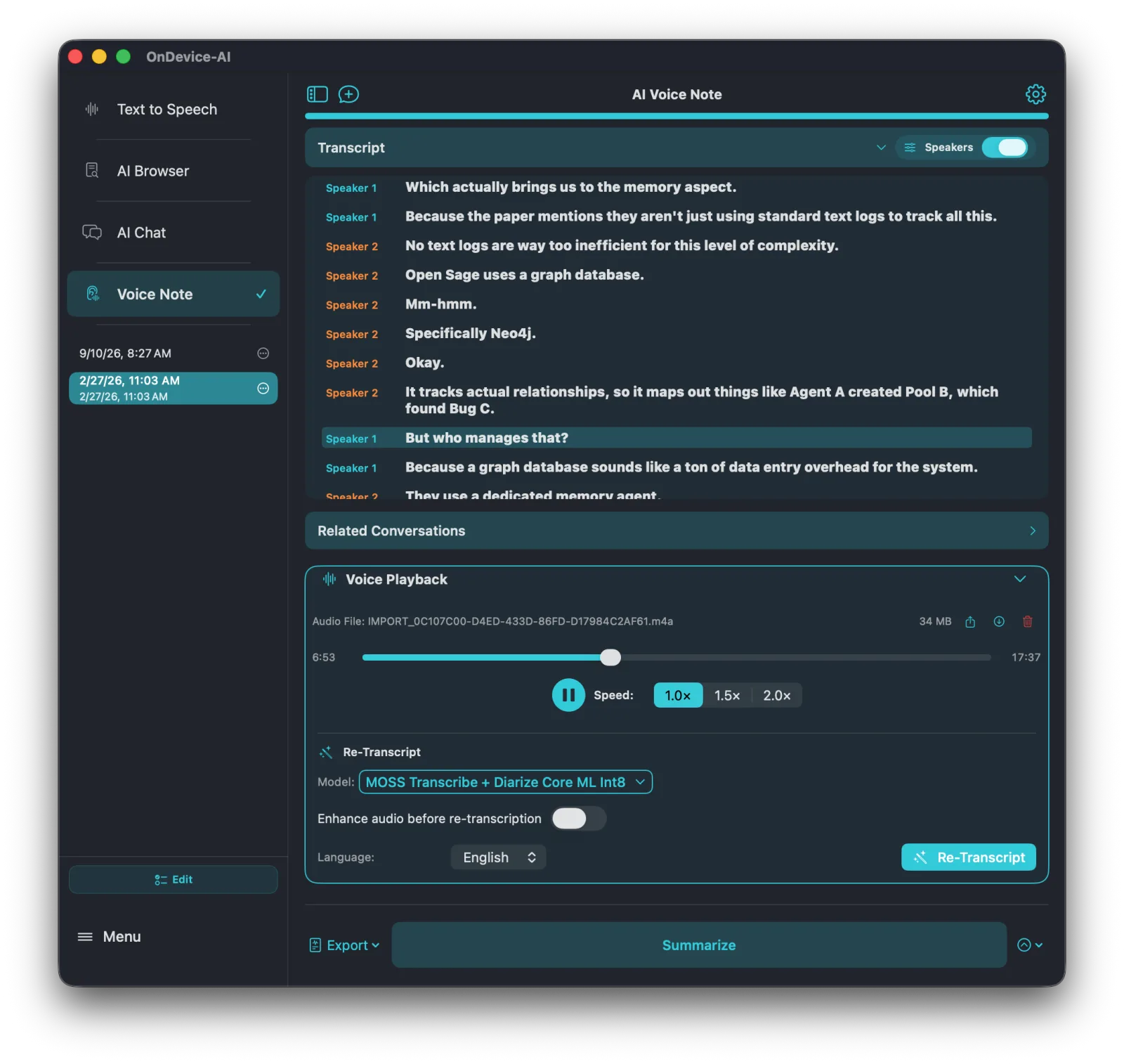
MOSS Transcribe + Diarize is a single 0.9B speech model that emits speaker-attributed, timestamped segments directly. The transcript arrives already divided into turns, so the app is not reconstructing who spoke from a separate similarity score. When the model's native segments validate against the audio, On Device AI keeps them and does not run a redundant diarization pass. If they fail validation, the app discards the invalid attribution and falls back to the configured diarization path rather than showing labels it cannot stand behind.
In the transcript view this looks ordinary, which is the point: turn on Speakers and each line carries its label, with playback still synced to the audio.
Long meetings are not truncated to fit the model
Every speech model has an inference window. The lazy approach is to make that window the recording limit and stop capture at 30 seconds. On Device AI treats the two as separate things. Recording keeps going until you stop it, and a completed recording longer than one window is processed as a sequence of bounded passes that cover the full timeline.
- Passes run one at a time, so memory use does not grow with the length of the meeting.
- Split points prefer quiet moments near the target boundary, with padding so words at the seam are not lost, and each interval is owned by exactly one pass so nothing is written into the transcript twice.
- Timestamps are converted back to the original recording timeline, and the app does not invent word-level timings the model never produced.
- You get one saved transcript, not a pile of fragments. If a pass cannot complete or you cancel, the previous transcript and the original audio stay exactly as they were.
There is an honest limit worth stating. A speaker label produced in pass three is not automatically the same person as the identically named label in pass one. On Device AI keeps those identities scoped to their pass unless full-recording speaker reconciliation runs, and it records which kind of labeling a transcript holds, so a later summary does not quietly merge two people into one.
Where you can select it
MOSS is eligible across the batch transcription workflows, not just new recordings:
- Voice Note recording on supported devices.
- Imported audio files, including a call or meeting recorded by another app.
- Re-transcription of audio you already saved, which is the fastest way to upgrade an old note to speaker-labeled text without recording anything again.
- Voice Typing on macOS, where capture runs first and text is inserted after processing.
- The Transcribe Audio action in Shortcuts and Siri, which returns one complete transcript without opening the app.
Because MOSS is a batch model, it shows no live partial text while you talk. Transcription starts when capture ends. For dictation where you want words appearing as you speak, an Apple Speech or Whisper model is still the better choice, and the app keeps those selections independent per workflow.
What it asks of your device
- MOSS Transcribe + Diarize Core ML Int8 — about 1.2 GB to download, roughly 1.75 GB of memory while running.
- MOSS Transcribe + Diarize MLX Int5 — about 1 GB to download, roughly 1.5 GB of memory while running.
- English, with speaker-segment timing rather than word-level timestamps.
- Supported iPad and Apple silicon Mac devices, Pro membership, and an explicit model download before offline use.
Every model row in Voice & Speech settings shows this information before you commit to a download, including language coverage, measured size, estimated memory, device requirement, and whether speaker labels are included. Selecting a model never silently swaps it for another one because a recording ran long or memory got tight; if the app cannot continue safely, it says so and asks you to free memory and retry.
The transcript is the start of the work, not the end
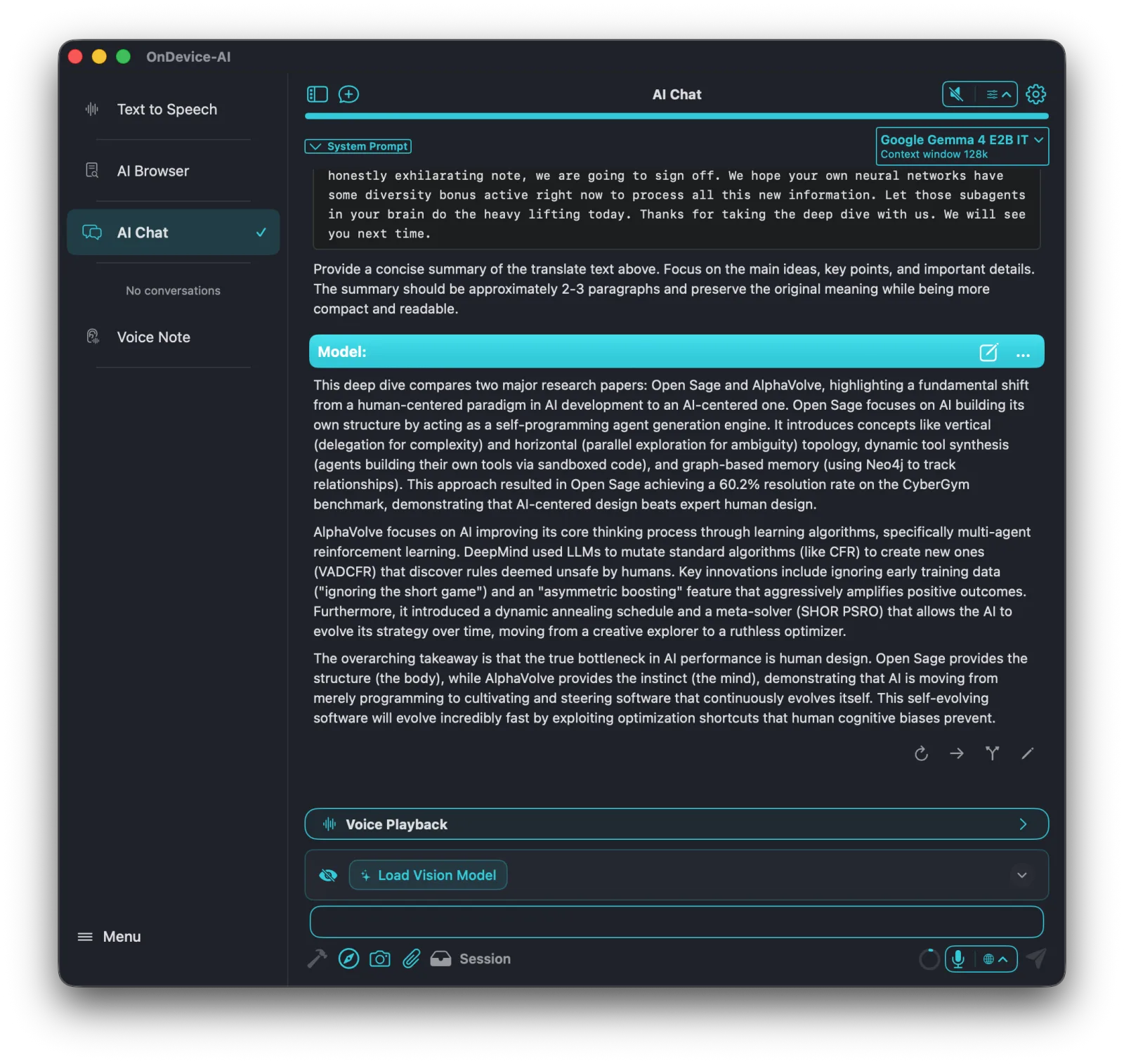
Once the turns are labeled, the rest of the app can use them. Summarize, bullet points, and action items pass speaker context into the prompt, so the model reads "Speaker 2 pushed back on the timeline" instead of "someone pushed back." That difference shows up directly in how much editing the summary needs.
From there, export the transcript as plain text, SubRip subtitles, or Markdown, or import it into a Knowledge Library so the decisions from that call become searchable project context alongside your documents.
Why this only makes sense locally
Meetings carry the material people are least willing to paste into a public chatbot: pricing, hiring, roadmap changes, named clients, patient and case details. Apple's own App Privacy guidance treats audio recordings as sensitive data, and most transcription services resolve that by asking you to upload anyway.
On Device AI takes the other route. The recording, the model, the speaker turns, and the summary all stay on your hardware, which also means the workflow keeps running on a plane, in a hospital basement, or on a network you would rather not trust. Cloud providers remain available elsewhere in the app, off by default, for the moments you actually want them.
Frequently asked questions
Do I still need the separate speaker diarization model?
Not for a MOSS transcript whose native speaker turns validate. The separate diarization path remains as a fallback, and full-recording reconciliation still uses it when a long, multi-pass transcript needs consistent speaker identities.
Can I re-transcribe an old Voice Note with MOSS?
Yes, if the audio was saved. Open the note, choose MOSS under Re-Transcript, and run it. The existing transcript is replaced only after the new one completes successfully.
Does a long recording cost more than one transcription?
No. All internal passes and retries count as a single user transcription for persistence and usage, and they produce a single Voice Note.
Can I edit the speaker labels?
Yes. Labels derived from MOSS output can be renamed or reassigned using the same review flow as other diarization results, and the edit is saved with the note.
Which model should I pick for a meeting?
Start with MOSS Transcribe + Diarize Core ML Int8 on a supported iPad or Apple silicon Mac when the recording has more than one voice. For single-speaker dictation or a language MOSS does not cover, a Whisper or Apple Speech option is a better fit.