Why we're writing this down
On Device AI is built by a small team. A reasonable person looking at a small app with a few hundred ratings will ask what happens to their recordings and notes if the app stops being updated. We'd ask the same thing.
The usual answer from cloud tools is an account export: log in, request an archive, wait for an email. We can't offer that, because there's no account and no server with your data on it. Every export has to start on the device where the data lives. That's a good property for privacy, and it puts the burden on us to make those exports obvious and complete. They're obvious in some places and not complete everywhere, so here's the honest list.
Voice Notes: the transcript and the original recording
This is the most complete part of the story, which makes sense, because recordings are usually the hardest material to replace.
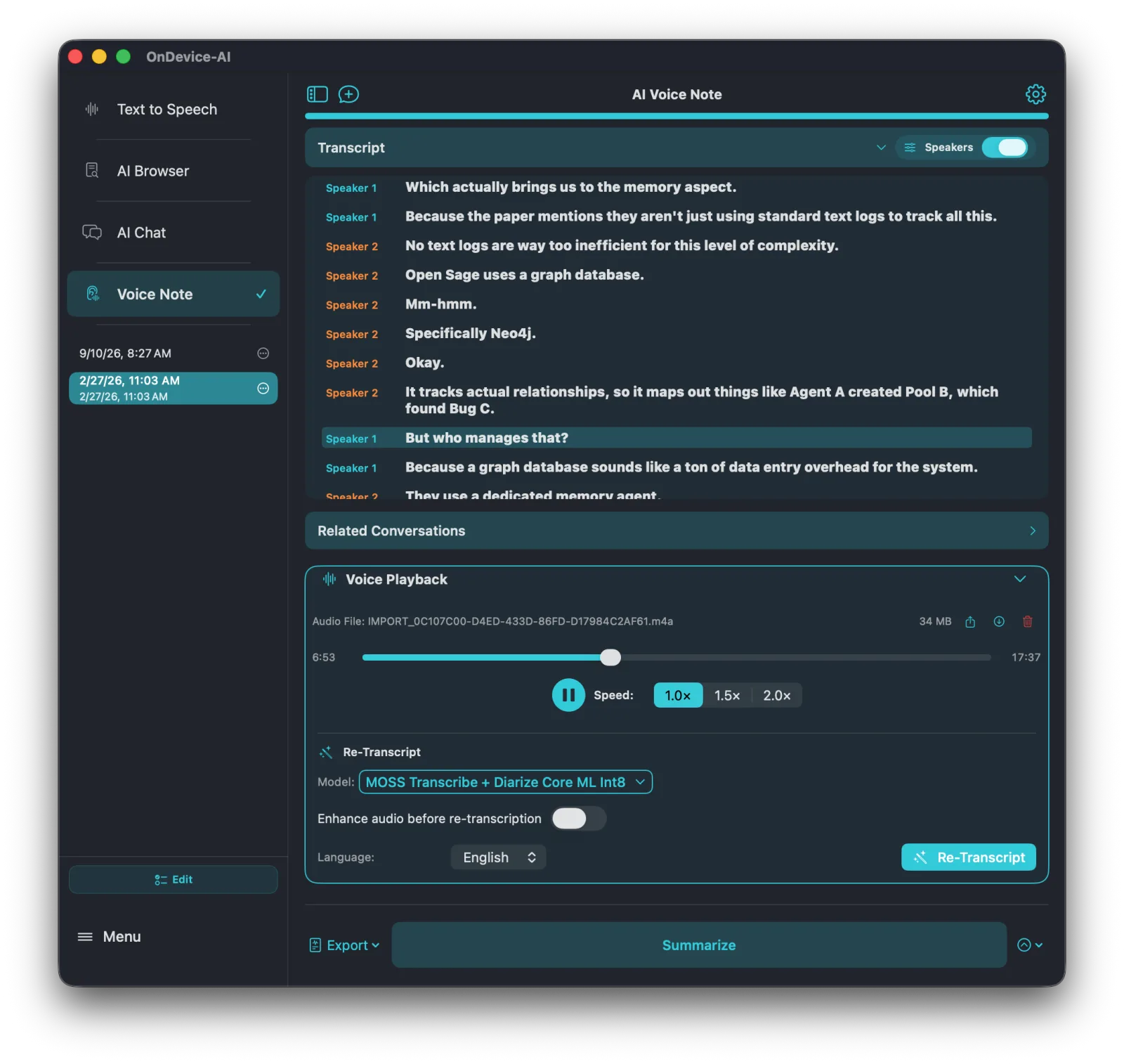
Under any transcript in Voice Note, the Export menu offers three formats:
- Plain text (.txt), for pasting anywhere.
- Markdown (.md), split into timestamped segments when the speech model provides timings. It drops straight into an Obsidian vault or any Markdown editor.
- SubRip (.srt), for subtitles in a video editor or player.
On Mac, a save panel lets you pick the folder. On iPhone and iPad, the file goes to the share sheet, so you can save it to Files, AirDrop it, or send it to another app.
The audio itself is yours too. The Voice Playback card on each recording has Share and Download buttons that hand over the actual audio file, not a re-encoded copy. If you ever want to transcribe the same meeting in a different tool, you can.
AI Chat: one Markdown file per conversation
In the conversation list, open a conversation's menu and choose Export as Markdown. You get a .md file with each turn under its own heading. Export as Markdown (with Reasoning) keeps the model's reasoning too, which is useful when you want to keep how an answer was reached and not just the answer.
You can also share a single reply from its message menu, which is quicker when you only need one good answer in an email.
Export works one conversation at a time. The batch selection in the conversation list saves several chats into a Knowledge Library at once, but it doesn't write them out as files.
Knowledge Libraries: a Knowledge Pack, for moving or keeping
A whole library exports as a single Knowledge Pack (.kllib). The pack carries the documents together with their finished search index, so the library works immediately when it's imported on another iPhone, iPad, or Mac, with no re-indexing and no network. You can add a password when the contents are sensitive.
We want to be precise about what this is. A Knowledge Pack is a protected file that only On Device AI can open. It's the right tool for moving a library to a new device, handing it to a colleague who also uses the app, or keeping a restorable copy in your archive. It is not a way to take your library's content into a different app.
Exporting a pack is free. Importing has limits on the free version: one pack of up to five documents when no library exists yet. Larger packs and more libraries need Pro.
What doesn't export yet
This is the section we'd rather not have to write.
- Text Notes and Knowledge Library documents can't be saved as individual files. You can copy them to another library, move them to Listen, or include them in a Knowledge Pack. To get one into another app today, open it in the editor and copy the text.
- There's no one-step backup of the whole app. Recordings, chats, and libraries each export from their own screens.
- There's no sync between your devices. A Knowledge Pack is the way to move a library from your Mac to your iPad.
- Chat export works one conversation at a time.
Plain-file export for notes and library documents is the most obvious gap on this list. We know it.
The full inventory
| What | How to get it out | Format |
|---|---|---|
| Voice Note transcript | Export menu under the transcript | TXT, Markdown, SRT |
| Voice Note audio | Share or Download on the playback card | The original audio file |
| AI Chat conversation | Export as Markdown in the conversation list | Markdown, with or without reasoning |
| Single chat reply | Share in the message menu | Text |
| Text to Speech audio | Share or Download on the playback screen | Audio file |
| Knowledge Library | Export in Knowledge | Knowledge Pack (.kllib), opens in On Device AI only |
| Text Note or library document | Copy text from the editor | No file export yet |
| Everything at once | Your device backup | iCloud Backup, computer backup, or Time Machine |
Device backups cover the rest
Until we ship our own backup, the operating system does that job, and it does it reasonably well. On iPhone and iPad, Apple's file system guide says the app's Documents and Library folders are included in iCloud and computer backups, with the exception of caches. On Device AI keeps its database and your recordings in those folders and doesn't opt them out. Restore a backup to a new iPhone and the app's data comes back with it. On Mac, Time Machine backs up the app's data folder as part of your user Library.
Two caveats. Cloud provider API keys are stored in the Keychain, so you may need to enter them again after moving to a new device. And a device backup restores everything or nothing, which is why the per-item exports above still matter.
Getting things in is just as open
Portability runs both ways. If you're coming from another tool, a Knowledge Library can import individual Markdown and text files, a whole folder such as an Obsidian vault, or a Notion export ZIP. Each note becomes an editable document that records where it came from. Voice Note can import audio recorded elsewhere (Pro), and transcripts from other apps come in as ordinary text or Markdown files.
We think that matters as much as export. An app that only accepts data in its own format, or only lets it out in its own format, is asking for trust it hasn't earned.
A simple routine if you depend on the app
- Keep iCloud Backup or Time Machine on. It's the only thing that captures everything at once.
- After an important meeting, export the transcript as Markdown into the folder where you keep long-term notes.
- Export chats you'll want to cite later as Markdown, while they're fresh.
- Once a month, export a Knowledge Pack of the libraries you'd hate to rebuild, and store the files wherever you keep archives.
It takes a few minutes, and none of it goes through a server.
Frequently asked questions
Can I export Voice Note transcripts?
Yes, as plain text, Markdown (timestamped when the model provides timings), or SRT subtitles. Mac opens a save panel; iPhone and iPad use the share sheet.
Can I get the original audio recording out?
Yes. Use Share or Download on the Voice Playback card for that recording.
Can I export AI Chat conversations?
Yes, one at a time, as Markdown with or without the model's reasoning. Single replies can be shared from their message menu.
Can I export Text Notes or Knowledge Library documents as files?
Not yet. You can copy their text from the editor, or export the whole library as a Knowledge Pack for use in On Device AI.
Can other apps open a Knowledge Pack?
No. It's a protected file for On Device AI, meant for moving a library between devices or people and for keeping a restorable copy.
Is my data included in iPhone backups?
Yes, by default. The database and recordings live in folders that iCloud and computer backups include, and the app doesn't exclude them. There's no in-app one-tap backup yet.
Do exports require Pro?
No. Exporting transcripts, recordings, chats, and Knowledge Packs is free. Some imports have Pro limits.