
RSS Feeds
RSS Feeds is a top-level workspace for following sites and turning new articles into something you can read or listen to. It sits next to Listen Library in the Side Menu and Menu hub rather than inside it, and both workspaces share the same playback engine, Up Next queue, mini-player, narration profiles, Listening Settings, and Listen widget. Available on iPhone, iPad, Mac, and Apple Vision Pro.
Subscribe to a feed
Choose Add Feed (Command-N on Mac) to open the subscription sheet. It has two paths:
- Suggestions: a small curated list of English-language article feeds, bundled with the app and grouped by topic. Nothing contacts a publisher until you choose Follow. A followed suggestion stays marked Following so you can add another without closing the sheet.
- Feed URL: paste a direct HTTP or HTTPS RSS 2.0, Atom, or JSON Feed address. A successful manual URL closes the sheet.
Both paths go through the same validation and subscription limits. The URL must point at a real feed endpoint — the app does not discover a feed from a website home page. If a suggested endpoint stops working, read the error on its row, retry later, or get a current feed URL from the publisher.
Refresh and background refresh
Use the refresh icon (Command-Shift-R on Mac) to check active feeds, and Stop to cancel a refresh in progress. Refresh deduplicates entries and preserves the read, played, and saved state you already have, so it never overwrites your progress or corrupts saved content.
Manual and foreground refresh are free for everyone. Background Refresh, which checks feeds while the app is minimized or in the background, requires Pro plus system background task permission. The number of subscriptions you can follow depends on the free, trial, and Pro tiers.
Browse, filter, and read
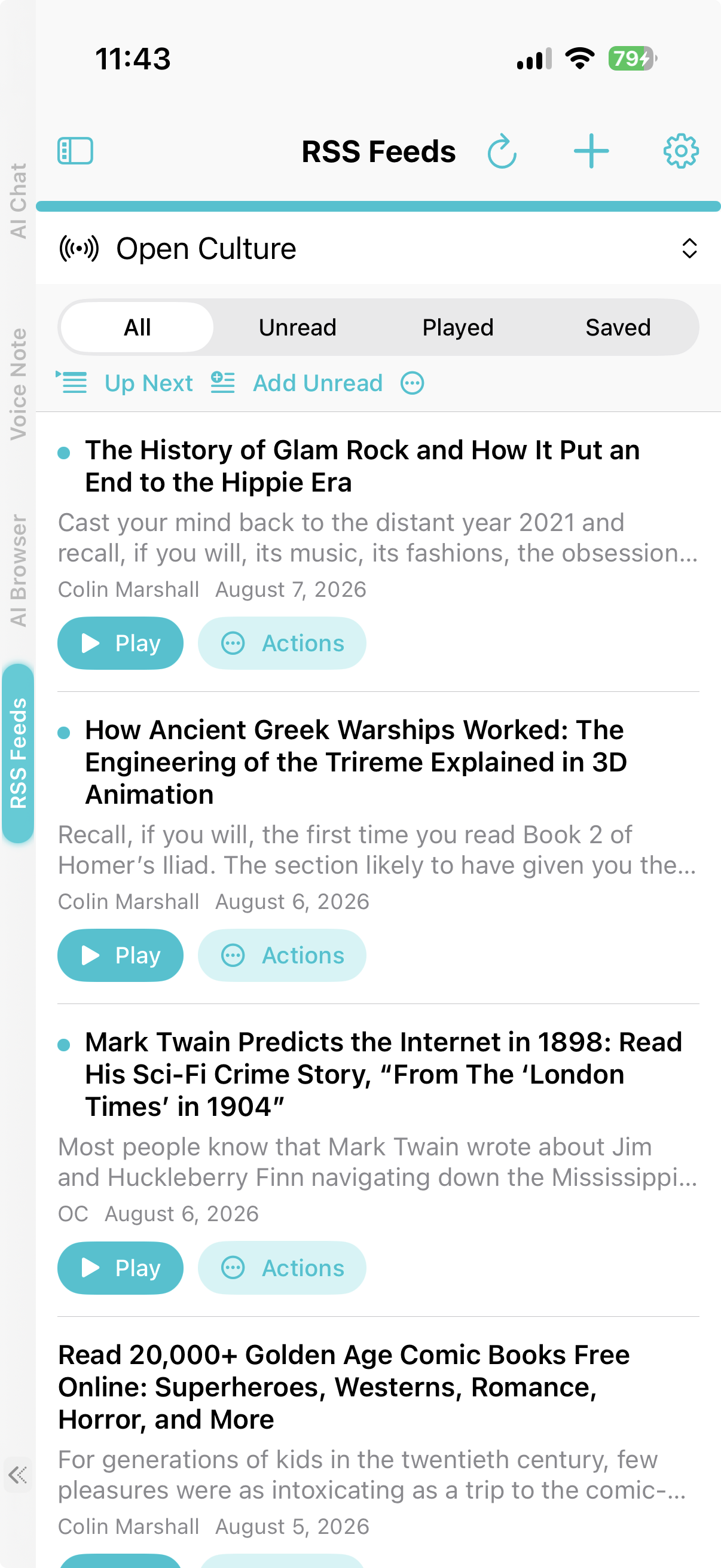
The filter bar switches between All, Unread, Played, and Saved entries. A cyan dot marks an unread entry, and opening an article or starting playback marks it read. Context menus and batch actions can mark entries read, unread, played, or unplayed.
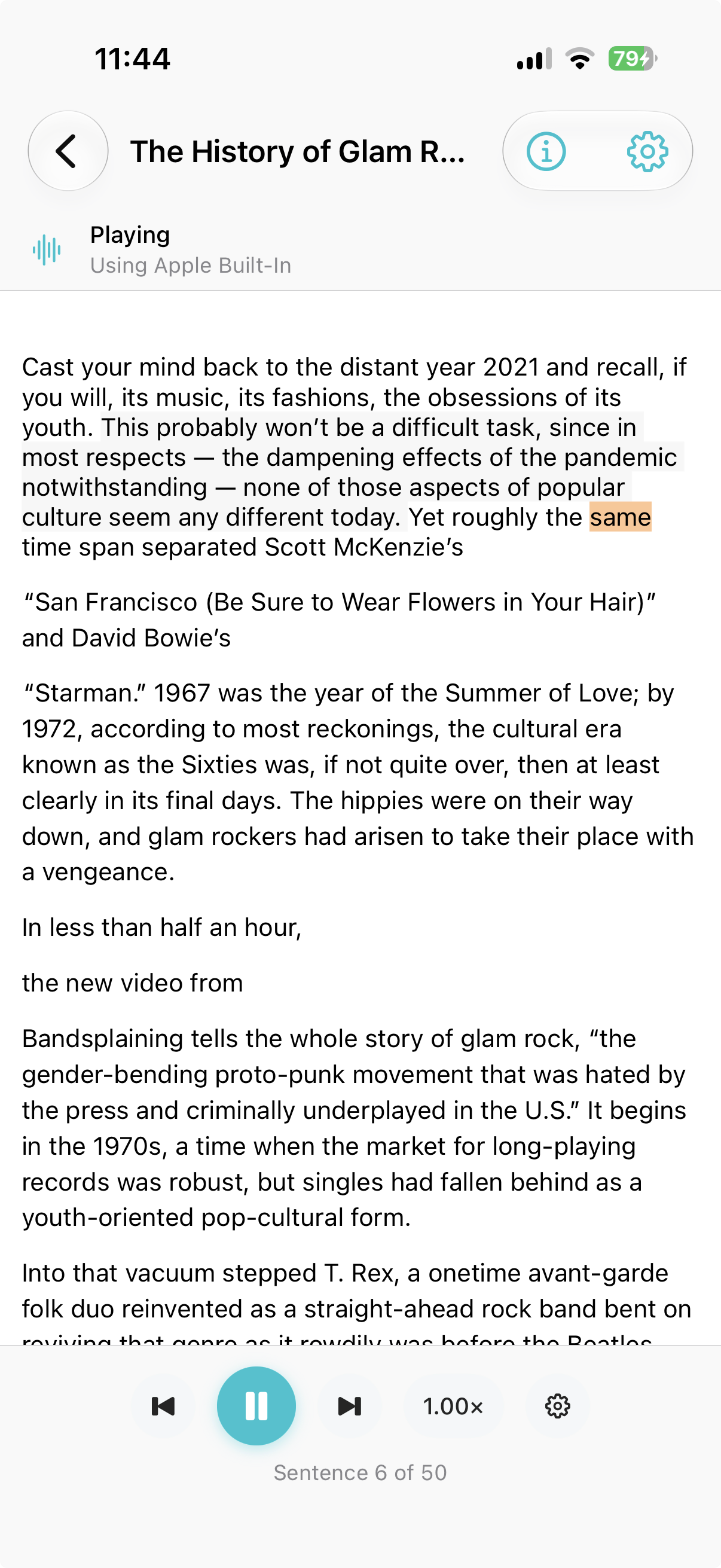
The article reader shows the full text extracted locally with Readability.js, or the publisher summary when that is all the feed provides. The header carries article metadata, publisher information, and the active narration engine. Font size, line spacing, and dark mode are adjustable. Bottom controls play, pause, restart the current sentence, skip backward or forward, and jump between sentences, and Follow Playback scrolls the text while highlighting the active sentence.
Engines that cannot safely apply narration instructions read the exact article text instead of a rewritten version. That keeps reporting accurate rather than paraphrased.
Build a listening queue
Up Next is shared with Listen Library. From a feed you can:
- Add Unread to enqueue every unread article in the current feed for continuous listening.
- Play Next to insert an entry immediately after the current item.
- Add to Queue to append an entry to the end.
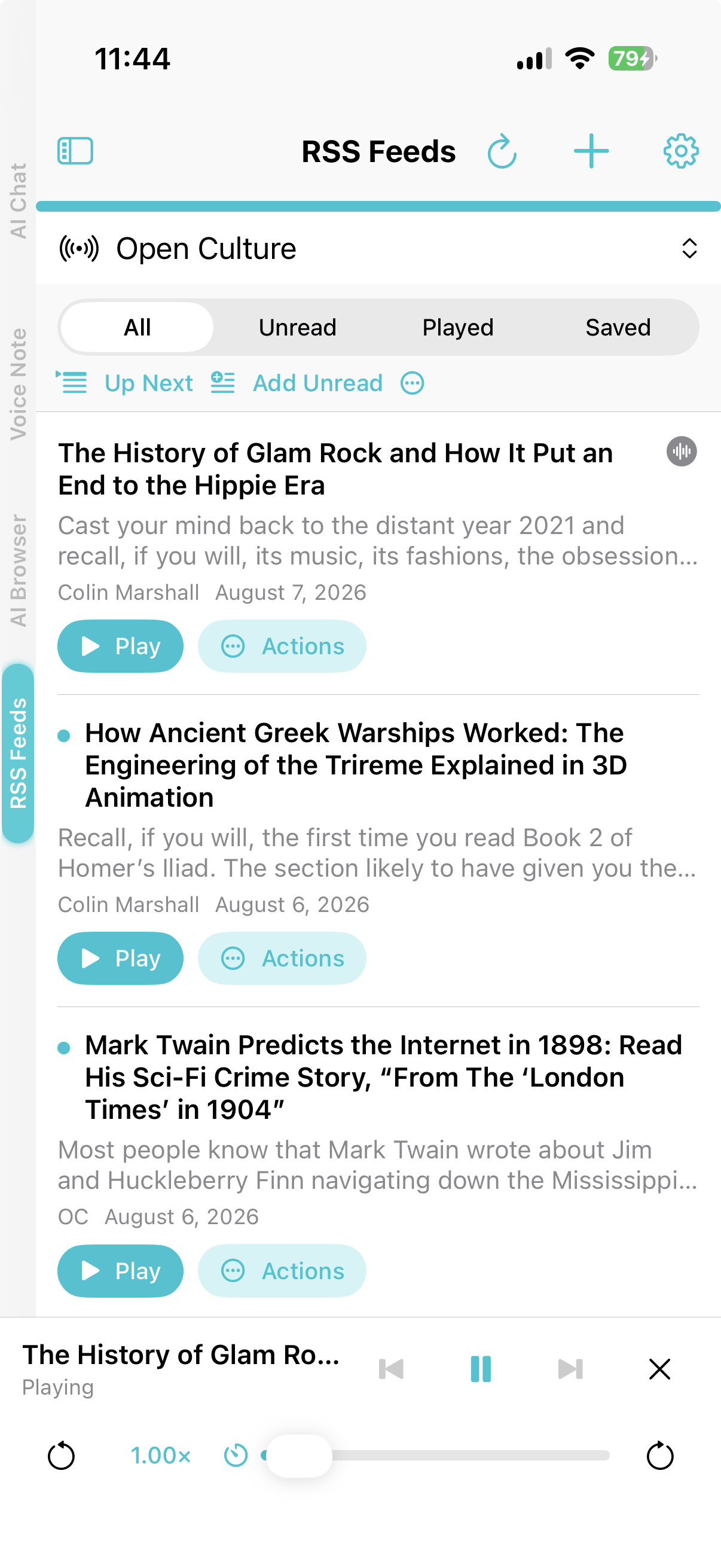
Queued items persist across restarts, and playback continues app-wide through the mini-player when you leave the reader. Removing a queued entry does not delete its source or unsubscribe you from the feed. The Listen widget can resume the paused current item, pause the playing item, or claim and start only the first pending item; its later rows open Up Next instead of playing out of order.
Save entries to the shelf
An entry you only open, play, or queue stays in the feed cache and in RSS Feeds history. Choosing Save to Shelf converts it into a permanent Listen Library document that keeps the full article text and prepared narration on your device, so it stays available offline even if the publisher removes the article or you unsubscribe. Deleting feed history never removes a saved shelf document.
Privacy and limits
Feed fetching is parsed in the app and bounded for safety, and the curated suggestion catalog ships inside the app rather than being fetched from a server. Article extraction, sentence indexing, and narration all run on device, so article text and generated audio stay in local storage.
See also
- Listen Library — the saved-document shelf, reader, scanned books, sleep timer, and Up Next details.
- Widgets — the Quick Actions widget opens RSS Feeds directly.
- Text-to-Speech — narration engines and voices.